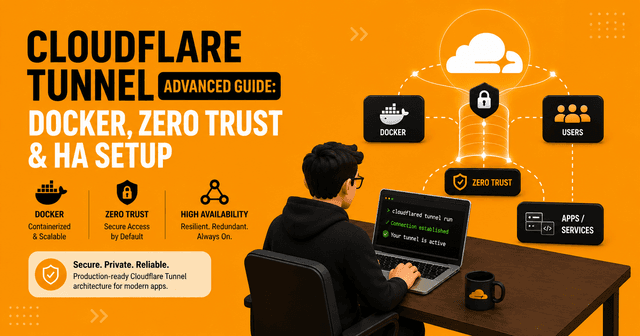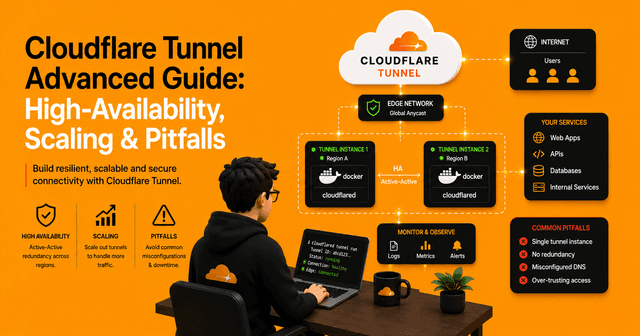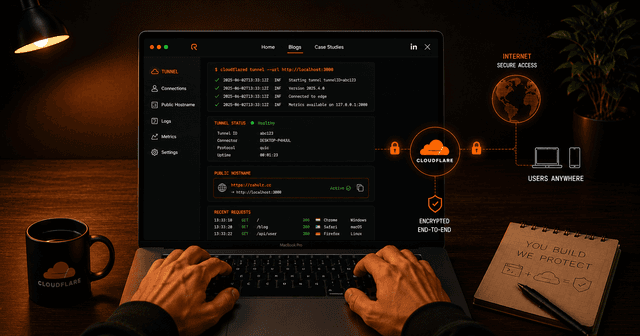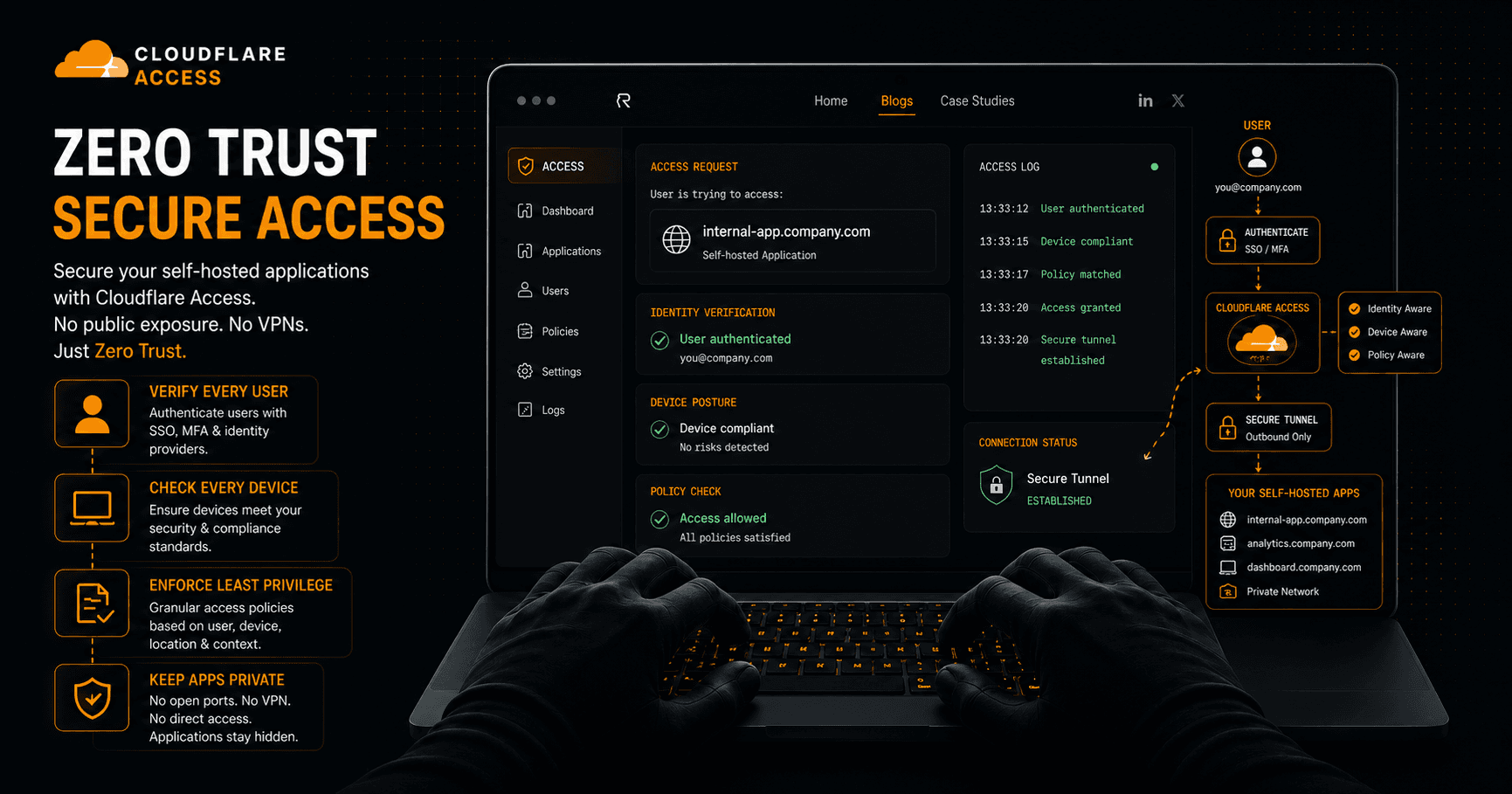

If you're exposing self-hosted applications through Cloudflare Tunnel, you're already reducing your attack surface by avoiding port forwarding. However, many administrators stop there and leave their applications publicly accessible.
Cloudflare Access, part of Cloudflare Zero Trust, allows you to place an authentication layer in front of any application before users ever reach your login page.
In this guide, we'll secure a self-hosted application hosted at:
app.example.com
using Cloudflare Access and One-Time PIN (OTP) authentication.
We'll cover:
-
Configuring Cloudflare One-Time PIN authentication
-
Creating reusable Access policies
-
Allowing an entire email domain
-
Whitelisting specific email addresses
-
Protecting a self-hosted application
-
Blocking public access entirely
By the end, only approved users will be able to reach your application.
Why Use Cloudflare Access?
Without Access:
Internet
    |
app.example.com
    |
Application Login Page
Anyone can reach your application.
They may not know the password, but they can:
-
Discover your login page
-
Attempt brute force attacks
-
Probe application vulnerabilities
-
Enumerate users
With Cloudflare Access:
Internet
    |
Cloudflare Access
    |
Authentication
    |
app.example.com
    |
Application
Users must authenticate with Cloudflare before the application is even exposed.
This dramatically reduces your public attack surface.
Prerequisites
Before starting, ensure:
-
Your domain is managed by Cloudflare
-
Cloudflare Tunnel is already configured ( you can also have a VPS with reverse-proxy services like Caddy, Traefik, Ngnix configured )
-
Using Cloudflare Tunnel is not a requirement. You can just add the DNS record and set it up as a "Proxy" to ensure the traffic passes through Cloudflare servers.
-
-
Your application is accessible through:
app.example.com
-
You have access to the Cloudflare Zero Trust dashboard
Step 1: Configure One-Time PIN Authentication
This is the most commonly missed step.
Many users create Access policies and wonder why no login code arrives.
Cloudflare Access only sends One-Time PIN codes if the One-Time PIN Identity Provider has been configured first.
Navigate to:
Zero Trust
 └── Integrations
      └── Identity Providers
Click:
Add New Identity Provider
Select:
One-Time PIN
Save the provider.
That's it.
No SMTP configuration is required because Cloudflare sends the authentication emails on your behalf.
Important: How OTP Delivery Works
When a user attempts to access:
https://app.example.com
they will see a Cloudflare login screen asking for an email address. Cloudflare only sends a login code if that email address matches an Access policy.
Example:
Allowed policy:
example@gmail.com
User enters:
example@gmail.com
Result:
OTP Email Sent
User enters:
unknown@gmail.com
Result:
Access Denied
No authentication code is sent. This behavior helps prevent unauthorized users from discovering who is allowed access.
Step 2: Create a Reusable Access Policy
Cloudflare now supports reusable Access policies that can be attached to multiple applications.
Navigate to:
Zero Trust
 └── Access Controls
      └── Policies
Click:
Add a Policy
Policy Example 1: Allow an Entire Email Domain
This is ideal for organizations.
Policy Name:
Company Employees
Action:
Allow
Rule:
Include
 └── Emails Ending In
      └── company.com
Result:
Allowed:
employee1@company.com
employee2@company.com
employee3@company.com
Denied:
example@gmail.com
Only users with email addresses ending in:
@company.com
can authenticate.
Save the policy.
Policy Example 2: Whitelist Specific Users
For personal applications or small teams.
Policy Name:
Approved Users
Action:
Allow
Rule:
Include
 └── Emails
Example values:
test-user@gmail.com
test-user2@gmail.com
investor@gmail.com
Only these exact users will be allowed access.
Save the policy.
Which Policy Should You Use?
Emails Ending In
Best for:
-
Companies
-
Teams
-
Organizations
Example:
@company.com
Every employee automatically gains access.
Specific Emails
Best for:
-
Homelabs
-
Self-hosted applications
-
Family access
-
Small groups
Example:
test-user2@gmail.com
investor@gmail.com
Only explicitly approved users can log in.
Step 3: Create the Self-Hosted Access Application
Navigate to:
Zero Trust
 └── Access Controls
      └── Applications
Click:
Create New Application
Choose:
Self-hosted and private
This is the current application type used for protecting self-hosted services.
Configure the Application
Application Name:
Internal App
Public Hostname:
app.example.com
Cloudflare will automatically create the Access protection layer for this hostname.
Configure Identity Providers
Under Authentication:
Select:
One-Time PIN
You may also enable:
-
Google
-
GitHub
-
Microsoft Entra ID
-
Okta
if desired.
For this guide we will use:
One-Time PIN Only
Attach the Access Policy
Under Policies:
Add:
Company Employees
or
Approved Users
depending on which policy you created earlier.
Cloudflare Access operates on a deny-by-default model.
If no policy matches:
Access Denied
The application remains inaccessible.
Save the application.
What Happens Now?
A visitor opens:
https://app.example.com
Cloudflare intercepts the request.
They see:
Enter Email Address
User enters:
example@gmail.com
Cloudflare verifies:
-
Is OTP enabled?
-
Does the email match a policy?
If yes:
Send Login Code
User receives a one-time PIN via email.
After entering the PIN:
Cloudflare Access Granted
The request is forwarded to your application.
Public Users Are Now Blocked
Before:
Internet
   |
app.example.com
   |
Application
After:
Internet
   |
Cloudflare Access
   |
Allowed Users Only
   |
Application
Anonymous visitors can no longer reach:
-
Login pages
-
Dashboards
-
Admin panels
-
APIs behind Access
unless they successfully authenticate.
Example Production Setup
Internet
    |
Cloudflare Access
    |
 app.example.com
    |
Cloudflare Tunnel
    |
 VPS
    |
 Docker
    |
 Application
Authentication occurs at Cloudflare's edge before traffic ever reaches your server.
This means:
-
No exposed ports
-
No VPN required
-
No public login page
-
Reduced attack surface
-
Simple email-based authentication
Testing Your Configuration
Open an incognito window.
Visit:
https://app.example.com
Try:
Allowed Email
example@gmail.com
Expected:
Login code arrives
Unauthorized Email
unknown@gmail.com
Expected:
No access granted
The user cannot reach the application.
Final Thoughts
Cloudflare Access is one of the easiest ways to secure self-hosted applications without deploying a VPN or identity platform.
The key configuration many users miss is enabling the One-Time PIN Identity Provider before creating policies. Without it, users will never receive authentication emails.
For personal projects, whitelist specific email addresses.
For organizations, use the "Emails Ending In" rule to automatically allow users from your company domain.
Combined with Cloudflare Tunnel, Access provides a powerful Zero Trust architecture where your application remains private, authenticated, and inaccessible to the public Internet.