
In Part 1, we built a Cloudflare Tunnel capable of exposing multiple local services through a single secure connection.
We successfully created:
app.example.com
api.example.com
grafana.example.com
without opening a single port on our router.
That's already a significant improvement over traditional port forwarding. However, most developers and homelab operators quickly discover that exposing a few applications is only the beginning.
Questions start appearing:
-
How do I expose Docker containers?
-
Can I secure services behind authentication?
-
What happens if my server reboots?
-
How do I scale beyond a few applications?
-
Can multiple machines share a tunnel?
-
How do production teams manage this?
This article answers those questions and takes Cloudflare Tunnel from a useful tool to a complete infrastructure component.
Why Most Tunnel Setups Eventually Become Difficult to Manage
Let's look at a realistic self-hosted environment.
Many developers start with:
Frontend
Backend API
Database Admin Tool
A few months later:
Frontend
Backend API
Grafana
Prometheus
Portainer
Jenkins
Home Assistant
Gitea
MinIO
Uptime Kuma
Now you're managing:
-
Multiple ports
-
Multiple containers
-
Multiple services
-
Different authentication requirements
-
Internal-only applications
-
Public-facing applications
Without structure, your configuration becomes difficult to maintain.
The goal is not simply exposing services.
The goal is building an architecture that scales.
Designing a Multi-Service Gateway
A common mistake is assigning random names.
For example:
app1.example.com
app2.example.com
app3.example.com
This quickly becomes confusing.
Instead, use service-oriented naming.
api.example.com
grafana.example.com
portainer.example.com
git.example.com
status.example.com
storage.example.com
Anyone can immediately understand the purpose of each endpoint.
For development environments:
dev-api.example.com
dev-web.example.com
staging-api.example.com
staging-web.example.com
This naming convention scales much better.
Advanced Ingress Routing
Part 1 introduced hostname routing. Cloudflared also supports more advanced patterns.
Basic hostname rule:
ingress:

  - hostname: api.example.com
    service: http://localhost:8080

  - service: http_status:404
Simple. But what if multiple applications share the same hostname?
Path-Based Routing
Suppose you want:
example.com/api
example.com/admin
example.com/dashboard
instead of separate subdomains.
Configuration:
ingress:

  - hostname: example.com
    path: /api/*
    service: http://localhost:8080

  - hostname: example.com
    path: /admin/*
    service: http://localhost:5000

  - hostname: example.com
    path: /dashboard/*
    service: http://localhost:3001

  - service: http_status:404
Requests are routed based on both hostname and URL path. This can simplify DNS management when dozens of services exist.
Wildcard Routing
Sometimes development environments change frequently. Instead of creating many DNS entries:
feature1.example.com
feature2.example.com
feature3.example.com
use a wildcard.
DNS:
*.example.com
Configuration:
ingress:

  - hostname: "*.example.com"
    service: http://localhost:3000

  - service: http_status:404
Useful for preview deployments and temporary environments.
Running Cloudflared as a System Service
Production deployments should never rely on manually running:
cloudflared tunnel run homelab
Use systemd instead.
Install service:
sudo cloudflared service install
Enable automatic startup:
sudo systemctl enable cloudflared
Start immediately:
sudo systemctl start cloudflared
Verify:
sudo systemctl status cloudflared
Example output:
Active: active (running)
Now the tunnel automatically recovers after:
-
Reboots
-
Crashes
-
Power failures
-
Maintenance windows
This is essential in production.
Docker Integration
Most modern self-hosted services run inside containers. Cloudflared works exceptionally well with Docker.
Consider this stack:
React Frontend
ExpressJS Backend
Grafana
Prometheus
All running in containers.
Running Cloudflared Inside Docker
Create a dedicated network.
docker network create cloudflare
Create docker-compose.yml:
version: "3.9"

services:
  cloudflared:
    image: cloudflare/cloudflared:latest
    command: tunnel --config /etc/cloudflared/config.yml run
    volumes:
      - ./cloudflared:/etc/cloudflared
    restart: unless-stopped
    networks:
      - cloudflare

networks:
  cloudflare:
    external: true
Start:
docker compose up -d
Cloudflared now runs entirely inside Docker.
Routing to Containers Directly
Instead of localhost:
service: http://localhost:3000
use container names.
Example:
ingress:

  - hostname: app.example.com
    service: http://frontend:3000

  - hostname: api.example.com
    service: http://backend:8080

  - hostname: grafana.example.com
    service: http://grafana:3000

  - service: http_status:404
Docker DNS automatically resolves container names. This creates a clean architecture.
Example Production Docker Stack
A realistic setup:
services:

  frontend:
    image: myapp/frontend

  backend:
    image: myapp/api

  postgres:
    image: postgres:16

  grafana:
    image: grafana/grafana

  prometheus:
    image: prom/prometheus

  cloudflared:
    image: cloudflare/cloudflared
Everything communicates internally. Only Cloudflare exposes services externally.
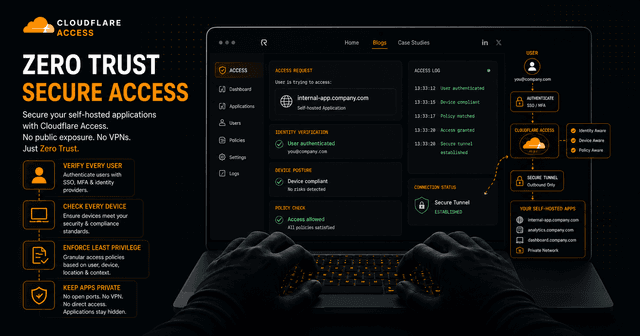
Protecting Internal Applications with Zero Trust
This is arguably Cloudflare Tunnel's strongest feature.
Consider:
grafana.example.com
Should Grafana be publicly accessible?
Probably not.
Instead:
Internet
↓
Cloudflare Access
↓
Authenticated User
↓
Grafana
Setting Up Cloudflare Access
Navigate to:
Zero Trust Dashboard
→ Access
→ Applications
→ Add Application
Select:
Self Hosted
Enter:
grafana.example.com
Restrict Access by Email
Example policy:
Allow
Email ends with:
@company.com
Only approved users gain access.
Everyone else receives:
Access Denied
before traffic reaches Grafana.
Restrict Access to Specific Users
Example:
alice@example.com
bob@example.com
charlie@example.com
Only these users can authenticate. Excellent for administrative dashboards. Even if someone discovers the URL, they cannot reach the application.
Exposing Grafana Securely
Without Access:
Internet
↓
Grafana Login Screen
Attackers can see the application.
With Access:
Internet
↓
Cloudflare Access Login
↓
Grafana
Grafana itself becomes invisible to unauthorized users. This significantly improves security.
High Availability Tunnels
A common question:
What happens if cloudflared crashes?
Cloudflare supports multiple tunnel connectors.
One tunnel.
Several cloudflared instances.
Example:
Server A
   |
Tunnel

Server B
   |
Tunnel

Server C
   |
Tunnel
Cloudflare automatically balances traffic. If one connector disappears:
Traffic continues
No downtime.
Multi-Host Architecture
Imagine:
VM1 → Grafana
VM2 → Prometheus
VM3 → Jenkins
All can participate in the same tunnel.
This enables distributed homelab architectures.
Monitoring Tunnel Health
Cloudflare provides metrics inside the dashboard.
Useful indicators:
-
Active connectors
-
Tunnel availability
-
Request volume
-
Errors
-
Traffic trends
Monitor regularly.
Viewing Logs
Systemd:
journalctl -u cloudflared -f
Docker:
docker logs -f cloudflared
Common troubleshooting begins here.
Detecting Misconfigured Services
Example symptom:
502 Bad Gateway
Often means:
Cloudflared works
Service doesn't
Verify local connectivity first.
curl http://localhost:8080
or
curl http://backend:8080
depending on deployment style.
Real-World Developer Workstation Setup
Many engineers expose local applications during development.
Example:
web-dev.example.com
api-dev.example.com
Cloudflared configuration:
ingress:

  - hostname: web-dev.example.com
    service: http://localhost:3000

  - hostname: api-dev.example.com
    service: http://localhost:8080

  - service: http_status:404
Useful for:
-
QA reviews/Webhook testing
-
Mobile testing
-
Client demonstrations
-
Remote collaboration
No VPN required.
Real-World Homelab Setup
A common self-hosting stack:
Jellyfin
Grafana
Prometheus
Portainer
Home Assistant
Uptime Kuma
Gitea
Configuration:
ingress:

  - hostname: media.example.com
    service: http://localhost:8096

  - hostname: grafana.example.com
    service: http://localhost:3000

  - hostname: prometheus.example.com
    service: http://localhost:9090

  - hostname: portainer.example.com
    service: https://localhost:9443

  - hostname: home.example.com
    service: http://localhost:8123

  - hostname: status.example.com
    service: http://localhost:3001

  - hostname: git.example.com
    service: http://localhost:3005

  - service: http_status:404
One tunnel.
Many services.
No port forwarding.
Common Mistakes
Exposing Everything Publicly
Avoid:
Public Grafana
Public Portainer
Public Jenkins
Use Zero Trust.
Always.
Missing Catch-All Rule
Incorrect:
ingress:

  - hostname: api.example.com
    service: http://localhost:8080
Correct:
ingress:

  - hostname: api.example.com
    service: http://localhost:8080

  - service: http_status:404
Wrong Service Port
Example:
service: http://localhost:8080
when the application actually runs on:
localhost:8000
Always verify locally first.
Mixing Container and Host Networking
Bad:
service: http://localhost:3000
inside Docker when service exists on another container.
Use:
service: http://frontend:3000
instead.
Cloudflared vs Alternatives
Cloudflared
Best for:
-
Homelabs
-
Internal applications
-
Zero Trust
-
Long-running services
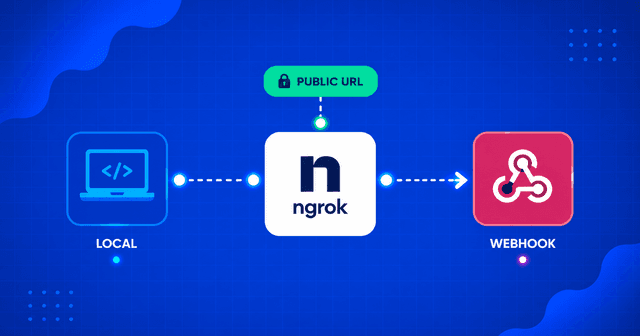
ngrok
Best for:
-
Temporary demos
-
Short-lived testing
-
Quick sharing
Reverse Proxy + Port Forwarding
Best for:
-
Full infrastructure control
-
Existing network expertise
But requires:
-
Open ports
-
Firewall management
-
SSL management
Cloudflared removes most of that complexity.
Recommended Production Architecture
For most teams and homelab operators:
Docker Containers
↓
Cloudflared
↓
Cloudflare Tunnel
↓
Cloudflare Access
↓
Internet
Benefits:
-
No inbound ports
-
Automatic TLS
-
Identity-based authentication
-
Centralized access control
-
Easy scaling
-
Reduced attack surface
This architecture has become increasingly popular because it combines simplicity with strong security.
Final Thoughts
Cloudflare Tunnel starts as a convenient way to expose a local application. But its real value appears when you begin managing many services.
Instead of configuring:
-
Routers
-
Firewalls
-
Reverse proxies
-
Certificates
-
Public IPs
you create a secure outbound connection and let Cloudflare handle the rest.
The combination of:
-
Named tunnels
-
Ingress routing
-
Docker integration
-
Zero Trust Access
-
Automatic HTTPS
-
High availability connectors
creates a surprisingly powerful platform for self-hosting, development environments, internal tooling, and homelab infrastructure.
Whether you're exposing a single application for testing or managing dozens of internal services, cloudflared provides a clean, scalable, and secure solution that avoids many of the operational headaches traditionally associated with publishing local services to the internet.