
Docker is an essential tool in modern software development, enabling teams to build and deploy applications in a consistent and repeatable manner. At the heart of Docker is the Dockerfile, a simple yet powerful text file used to define how Docker should build your application's container image.
In this guide, we’ll explore Dockerfiles specifically through the lens of Node.js and Express applications, diving deep into creation, layering, optimization, and best practices for production-grade Docker images.
What is a Dockerfile?
A Dockerfile is a text file containing a sequence of instructions Docker uses to build container images. Each instruction corresponds to a layer, incrementally building up the final Docker image. It’s essentially a blueprint for how your application should run inside a Docker container.
Why is a Dockerfile Required for Node.js & Express?
Dockerfiles solve several critical problems in Node.js development:
-
Environment Consistency: Ensures your Express app runs identically on all environments. Let it be development, staging, or production.
-
Portability: Containers run reliably on any Docker-supported platform.
-
Ease of Deployment: Automates deployment processes.
-
Collaboration: Allows easy versioning and sharing among development teams.
Creating Your First Dockerfile for a Node.js & Express App
Let’s assume you have a basic Express app with the following structure:
my-app/
├── node_modules/
├── src/
│   ├── app.js
├── package.json
├── package-lock.json
└── .dockerignore
Example Dockerfile:
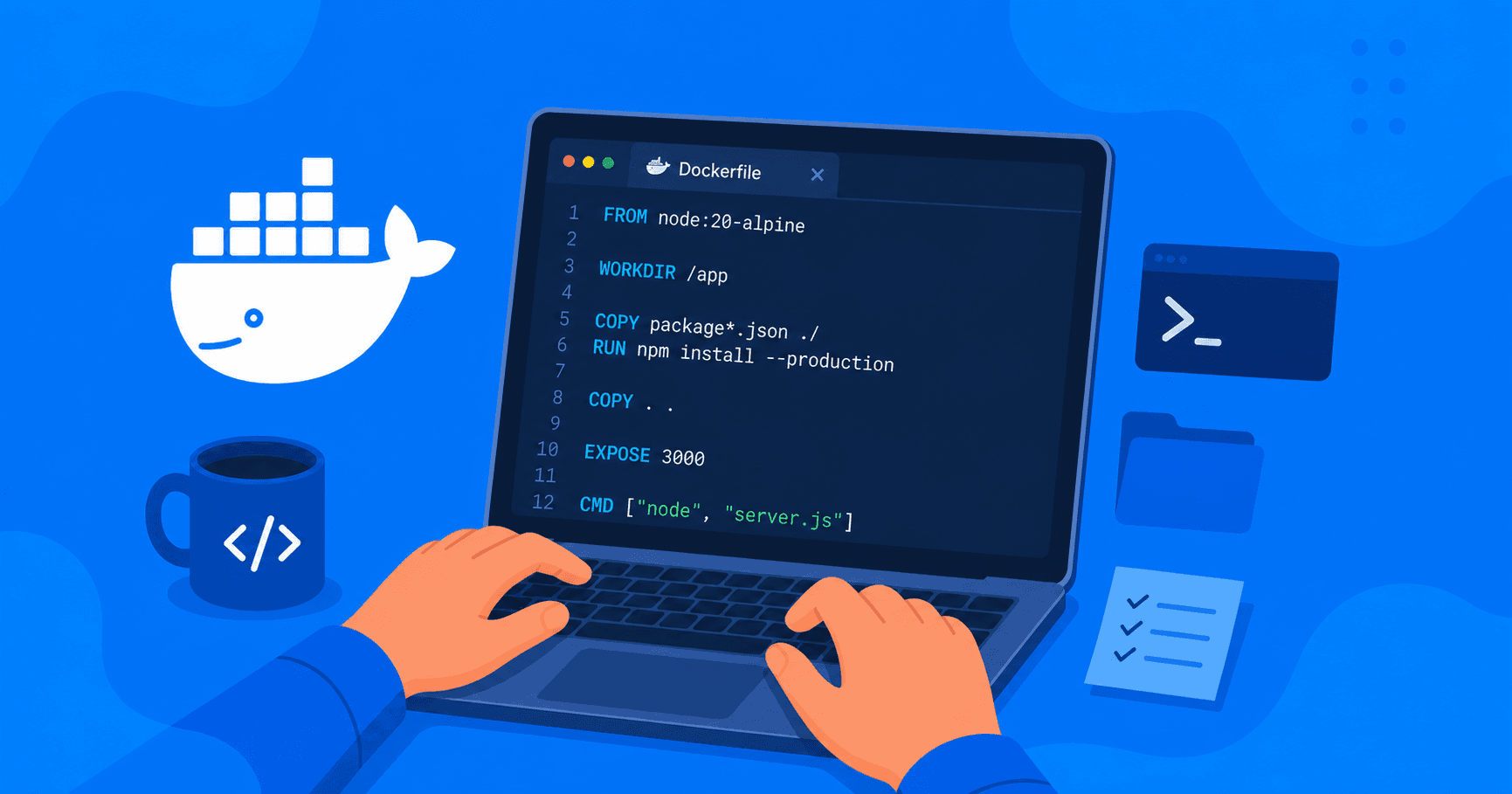
Here's a straightforward Dockerfile for a basic Node.js & Express app:
# Base image
FROM node:24-alpine

# Set working directory
WORKDIR /app

# Copy package files first for efficient caching
COPY package.json package-lock.json ./

# Install dependencies
RUN npm install

# Copy the rest of your source code
COPY ./src ./src

# Expose port
EXPOSE 8000

# Start the app
CMD ["node", "src/app.js"]
Explanation of Each Instruction:
-
FROM: Base image (node:24-alpineis a lightweight official Node.js image). -
WORKDIR: Sets the directory Docker uses for subsequent commands. -
COPY: Copies your application’s files into the container. -
RUN: Executes shell commands during the image build (installing dependencies). -
EXPOSE: Documents the port your app listens to. -
CMD: Defines the command Docker runs when the container starts.
Understanding Docker Layering
Docker builds images in layers, each instruction creates a new layer. Docker caches these layers to optimize subsequent builds. If a layer doesn’t change between builds, Docker simply reuses the cached layer, significantly speeding up builds.
For example, the layers from the Dockerfile above look like this:
Layer 1: FROM node:24-alpine
Layer 2: WORKDIR /app
Layer 3: COPY package.json package-lock.json ./
Layer 4: RUN npm install
Layer 5: COPY ./src ./src
Layer 6: EXPOSE 8000
Layer 7: CMD ["node", "src/app.js"]
Key Takeaway: Keep instructions that rarely change near the top and frequently changing instructions near the bottom for optimal caching.
Optimizing Your Dockerfile for Production
Building production-grade Docker images involves several best practices:
1. Leverage Layer Caching
Install your app’s dependencies first, separately from the rest of your source code. Since dependencies change less frequently, this step remains cached longer.
FROM node:24-alpine
WORKDIR /app

# Copy dependency files first
COPY package.json package-lock.json ./

# Install dependencies (production only)
RUN npm ci --omit=dev

# Copy remaining application code
COPY ./src ./src

EXPOSE 8000
CMD ["node", "src/app.js"]
Note: Using
npm ciensures consistent dependency installation based onpackage-lock.json.
2. Multi-stage Builds for Smaller Images
Multi-stage builds help significantly reduce image size by separating build and runtime environments.
# Build stage
FROM node:24-alpine AS builder
WORKDIR /app
COPY package*.json ./
RUN npm ci
COPY . .
RUN npm run build

# Production stage
FROM node:24-alpine
WORKDIR /app
COPY package*.json ./
RUN npm ci --omit=dev
COPY --from=builder /app/dist ./dist

EXPOSE 8000
CMD ["node", "dist/app.js"]
3. Use a .dockerignore File
A .dockerignore file excludes unnecessary files from your Docker build, improving build speed and reducing image size.
Example .dockerignore:
node_modules
npm-debug.log
Dockerfile
docker-compose.yml
.git
.env
README.md
4. Run Containers as Non-Root Users (Security)
Running containers with reduced privileges improves security:
FROM node:24-alpine
WORKDIR /app

COPY package*.json ./
RUN npm ci --omit=dev

COPY ./src ./src

# Create a non-root user
RUN addgroup -S appgroup && adduser -S appuser -G appgroup

# Change ownership and run as non-root user
RUN chown -R appuser:appgroup /app
USER appuser

EXPOSE 8000
CMD ["node", "src/app.js"]
5. Minimize Image Size and Vulnerabilities
Use slim base images (node:24-alpine) to reduce image size and decrease security risks. Alpine images are small, fast, and secure, making them ideal for production deployments.
Dockerfile Best Practices Checklist (Node.js/Express)
-
✅ Order commands logically: Dependencies first, then source code.
-
✅ Use Multi-stage builds: Reduce final image size significantly.
-
✅ Use
npm ci: Ensures reproducible builds based onpackage-lock.json. -
✅ Run as non-root user: Improves security posture.
-
✅ Minimal base images: Choose
node:alpinevariants. -
✅
.dockerignorefile: Exclude unnecessary files. -
✅ Explicitly expose ports: Use
EXPOSEclearly for documentation.
Building and Running Your Docker Image
Build your image:
docker build -t my-express-app:latest .
Run the container:
docker run -d -p 8000:8000 my-express-app:latest
Visit your application at http://localhost:8000
Summary and Conclusion
Dockerfiles simplify deployment, enhance consistency, and enable powerful optimizations in Node.js/Express development. Understanding layers, caching, multi-stage builds, security, and best practices ensures your Express applications are robust, secure, and production-ready.
Following this guide, you'll confidently use Dockerfiles to containerize, optimize, and deploy your Node.js & Express apps efficiently.
PS
Start dockerizing your web applications for development and you'll get the necessary confidence to deploy the same applications on production using docker